Appearance
Installing Fedora
I am using Fedora Silverblue because the MacMini will be used mainly by my family or might go into other people's houses, who likely don't know much about computers. Having an immutable system that is auto-updating and rock-solid is an nice property to have in that case.
Also the use of Flatpaks makes it easy for normal people to find and install software.
Go to getfedora.org and download the Fedora Media Writer. Use the GUI to find Fedora Silverblue and install it to an USB-Stick.
Simply stick the USB-Stick into your MacMini and hold the alt-key while the Mac is booting. A Menu should appear where you can choose to boot from USB. Now just run through the Fedora installer and complete the installation.
Setting up the System
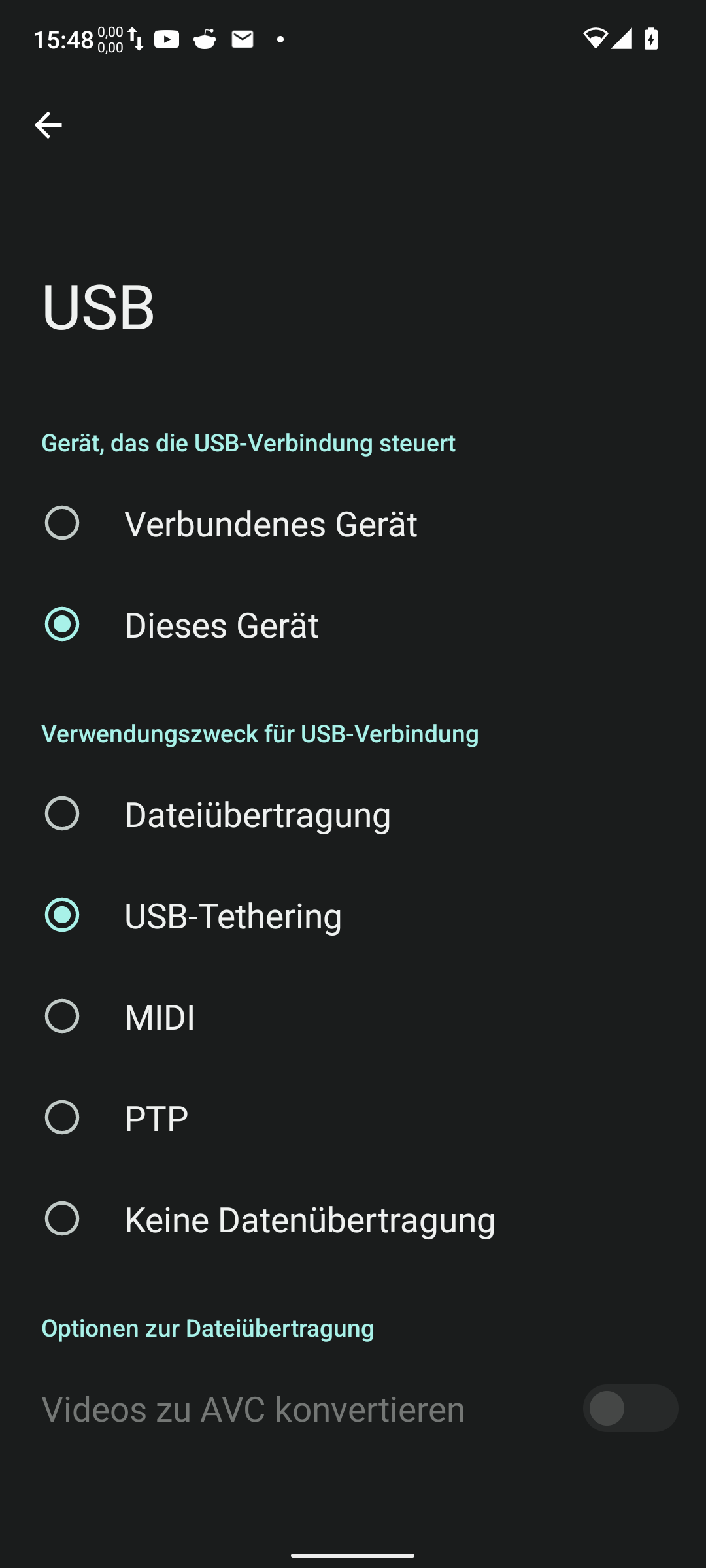
Since we have no WiFi we also can't download drivers or set up the system. For that reason you can, unless of course you have an Ethernet cable nearby that you can use for a wired connection, I recommend conencting your Android-phone via USB and enabling USB-Tethering. This will allow you to share your phone Wifi or cellular internet connection with your Mac via USB.
After connecting your phone via USB, a notification should appear in your notification center. Click on it and then select "USB-Tethering":
RPM Fusion
To get all our drivers we need to install the RPM Fusion repos by visiting rpmfusion.org and running the command to install the repo for "Silverblue with rpm-ostree".
bash
$ sudo rpm-ostree install https://mirrors.rpmfusion.org/free/fedora/rpmfusion-free-release-$(rpm -E %fedora).noarch.rpm https://mirrors.rpmfusion.org/nonfree/fedora/rpmfusion-nonfree-release-$(rpm -E %fedora).noarch.rpmYou should now reboot to get the new repos to work and also to install any updates which might have been installed.
WiFi
With RPM Fusion installed and working internet you can now install the drivers for the Broadcom WiFi-card by install this package:
bash
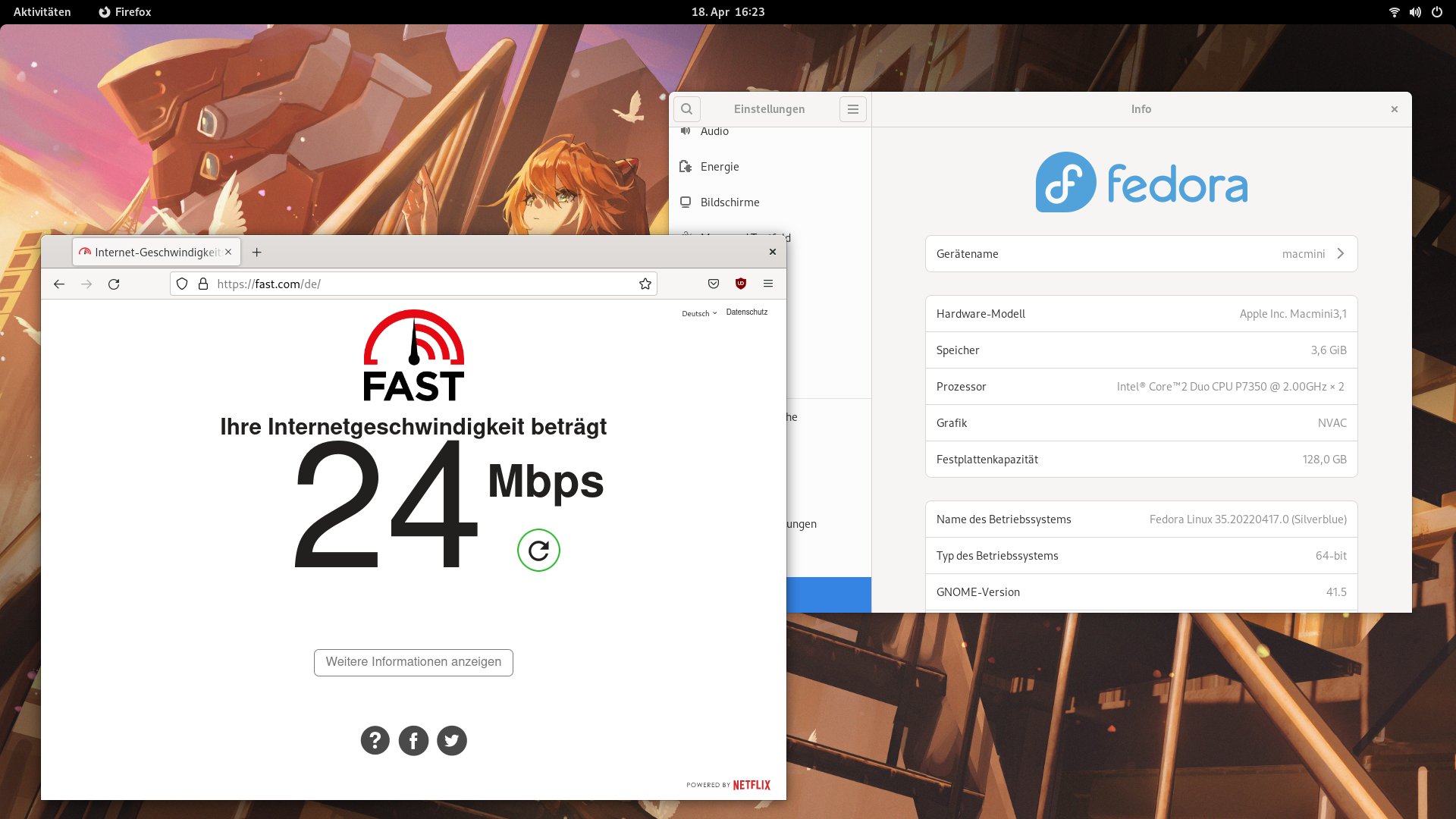
$ sudo rpm-ostree install (kmod-wl) broadcom-wlWait for everything to install (it can take a few minutes) and reboot your system afterwards. You should now be able to set-up and use your home WiFi.
Nvidia Graphics
Unfortunately, the old Nvidia drivers don't work too nicely and result in a crashing system when you blacklist the open source default driver, thus I recommend to stick to the original "nouveau" driver and not to use the Nvidia ones.
The late 2009 MacMini uses integrated Nvidia graphics, which need propriotary Nvidia driver to work nicely. Just like the Broadcom WiFi-card, these driverscan also be found in the RPM Fusion repos. To install them, issue the following commands:
bash
# source: https://rpmfusion.org/Howto/NVIDIA
$ sudo rpm-ostree install akmod-nvidia xorg-x11-drv-nvidia xorg-x11-drv-nvidia-cuda
$ #sudo rpm-ostree kargs --append=rd.driver.blacklist=nouveau --append=modprobe.blacklist=nouveau --append=nvidia-drm.modeset=1
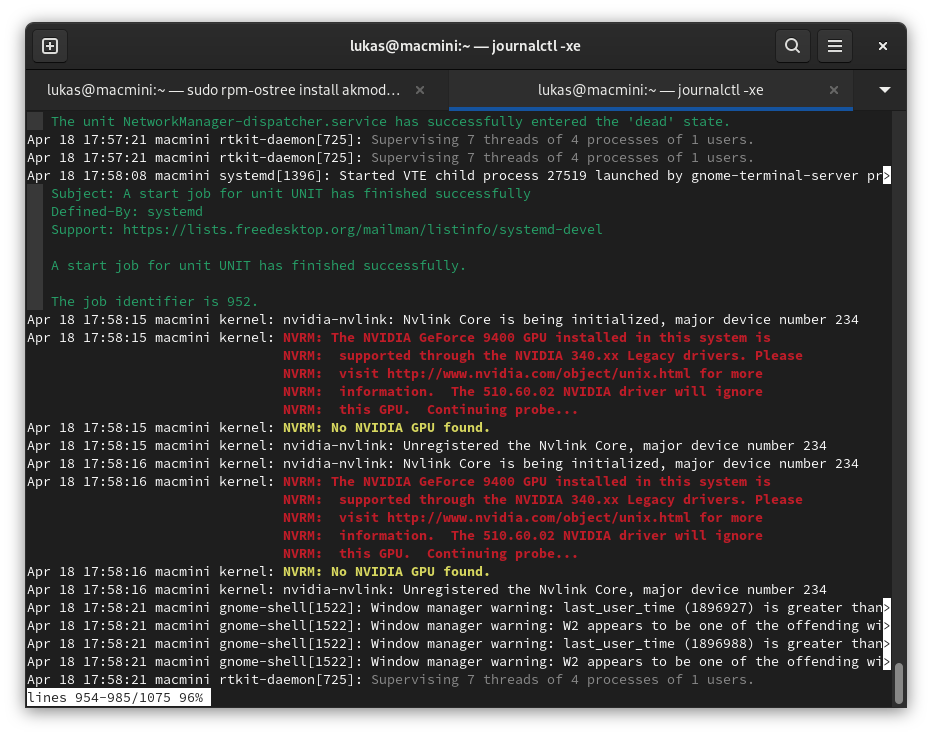
This will install the Nvidia drivers and blacklist the default open-source driver, which ships with Fedora and is the reason why the system feels slow to use. If we don't blacklist the original driver, the propriotary one will not be used. We are also not installing the current drivers but instead the legacy 340.xx driver, because the GeForce 9400 GPU in the MacMini is not supported by it. If you decide to try the regular propriotary nvidia driver, you'll see this error in your logs:
After all commands succeed and you have rebooted your system, it should now feel a lot more snappy and nice to use. Of course, it won't be that fast because the hardware is quite old, but it should be very usable.